5 Connect to LiveShell Studio
This chapter describes how to access LiveShell Studio.
5-1 Login to LiveShell Studio
To access LiveShell Studio, follow the steps below.
Confirm the URL to access LiveShell Studio
First, check and confirm the LiveShell Studio URL from this product menu. Follow the steps below.
Push the control dial, “MAIN MANU” is displayed.
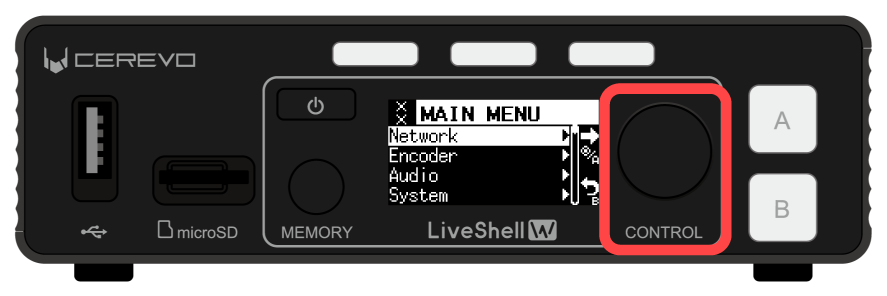
Turn the control dial, select “Network”. Then push the video select button A.
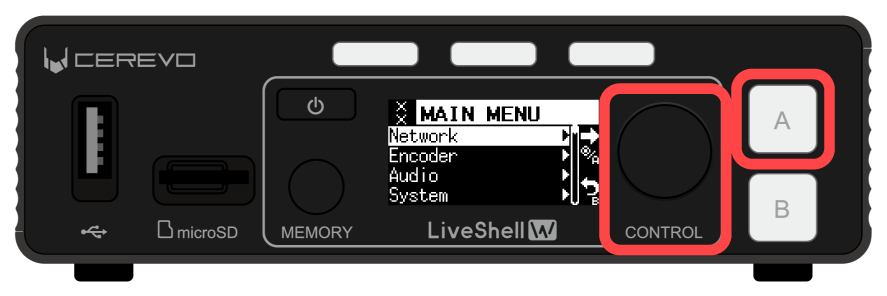
Turn the control dial, select “Web Login”. Then push the video select button A.
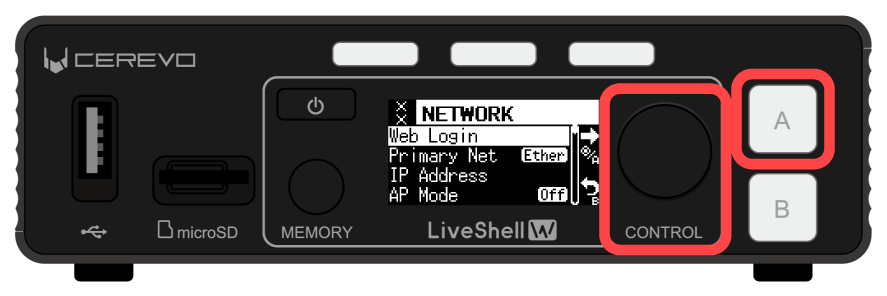
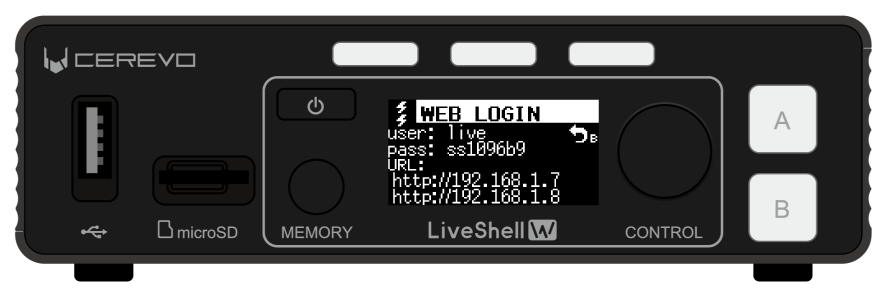
The necessary information to access LiveShell Studio will display on the OLED screen.
Tip
If the network connection of this product is not properly connected, the URL will be blank.In that case, please check and confirm that each network setting is correct.
→ 3-2 Preparing for Network Connection
→ 4-2 Connecting to a network
Tip
LiveShell Studio is a web application embedded the LiveShell W. Therefore, if your network settings are DHCP, or depending on the network environment you’re connected to, the login URL may change each time you start up the LiveShell W.
The LiveShell Studio login URL depends on the LiveShell W IP address. Therefore, if you want to fix the login URL, set LiveShell W to a static IP address.
→Setting using LiveShell Studio
→I want to fix the unit’s IP address.
Accessing to LiveShell Studio from a web browser
To access LiveShell Studio from a web browser, please follow the below instructions.
Connect the operating device to the same network as this product.
Tip
What is the same network?
If this product is connected via a wired LAN Use a LAN cable (sold separately) to connect the operating device to the same network device, such as a router or switching hub, as this product.
If this product is connected via a wireless LANConnect the operating device to the same router as the product via wireless LAN.
Open a web browser on the operating device and enter the URL displayed on this product’s OLED screen into the address bar to access LiveShell Studio.
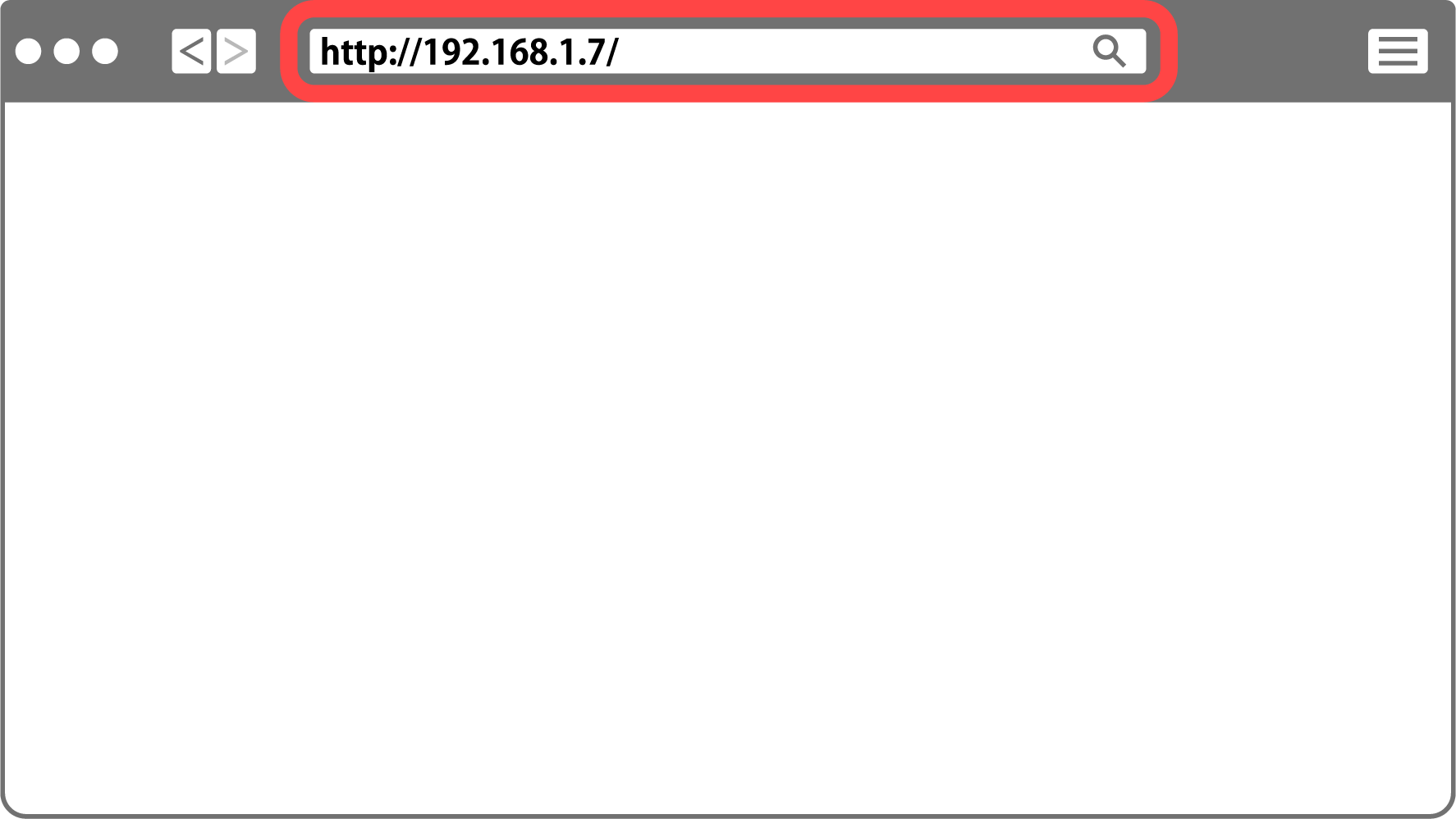
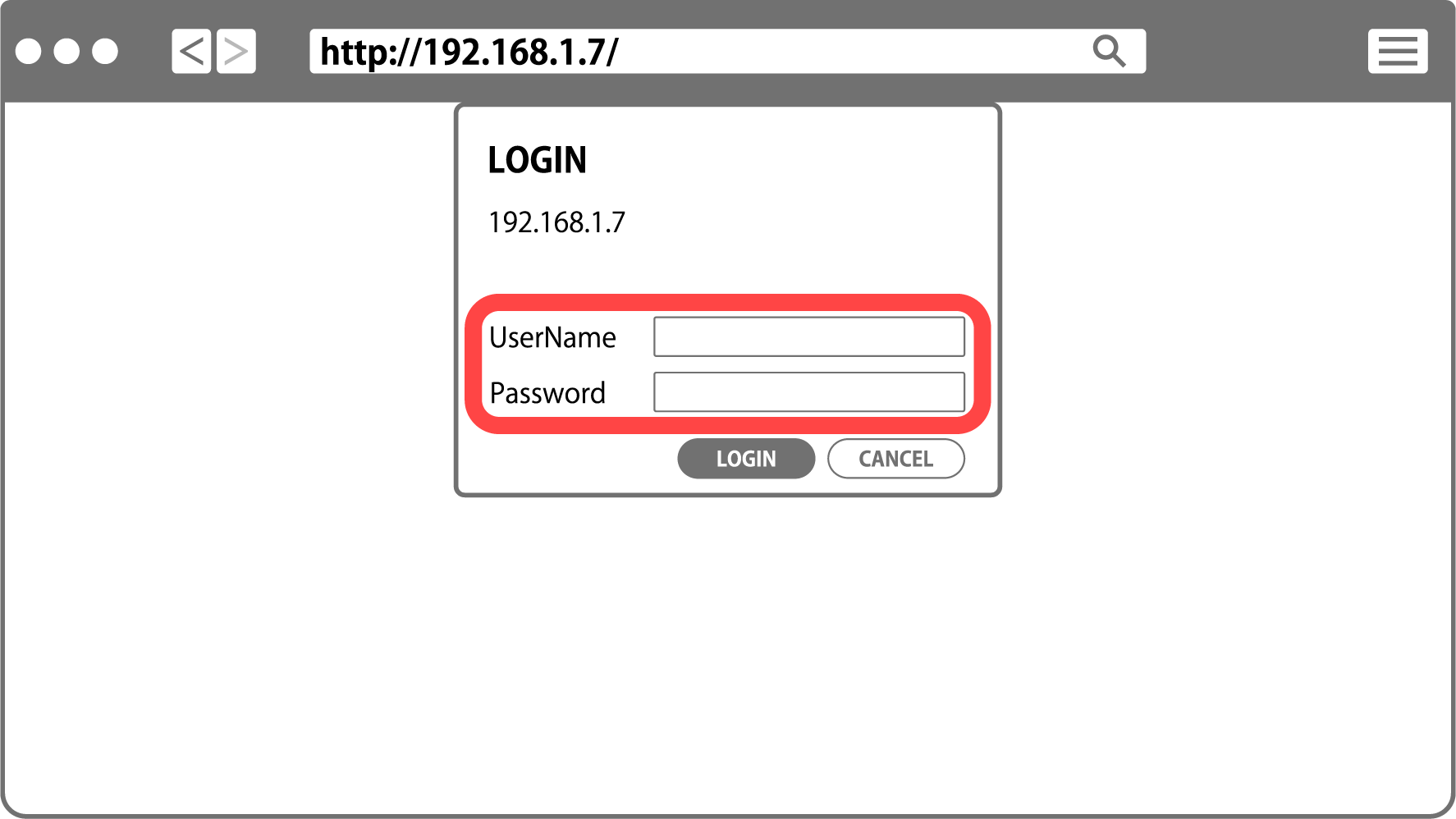
When you access the URL, you will be asked to enter your username and password. Enter the “user” and “pass” displayed on this product’s OLED screen to log in to LiveShell Studio.
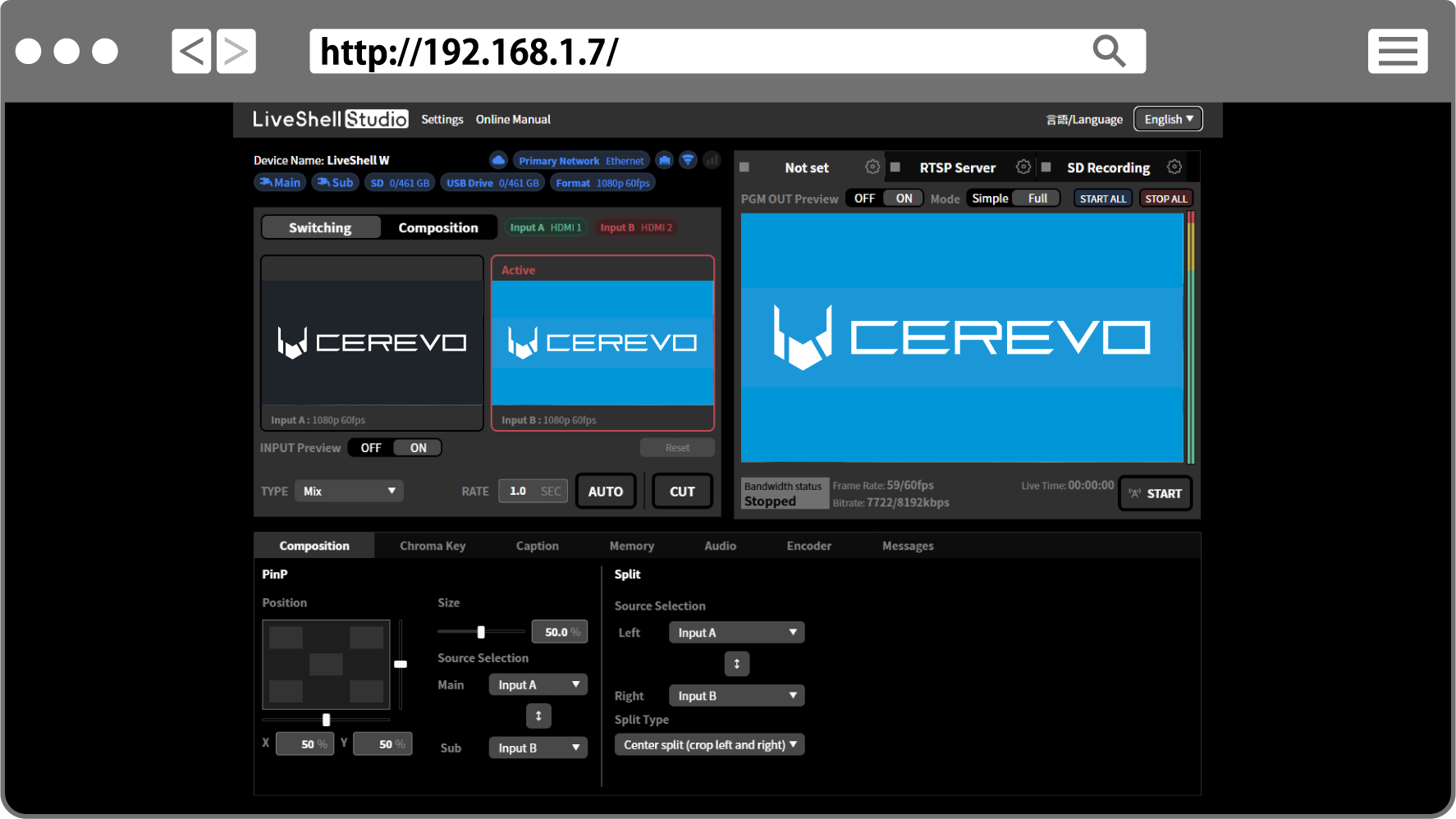
When you log in successfully, the LiveShell Studio home page will be displayed in your web browser.
Tip
If you are unable to access LiveShell Studio, refer to the troubleshooting below.
→Unable to Connect to LiveShell Studio via Wired LAN
→Unable to connect to LiveShell Studio via wireless LAN