3 Preparation
3-1 Video and audio input
Inputting video via HDMI
Use an HDMI cable (sold separately) to connect a video device such as a camera or computer to the HDMI terminal (INPUT 1 and INPUT 2) on the back of the product.
If connecting only one video device, connect it to INPUT 2.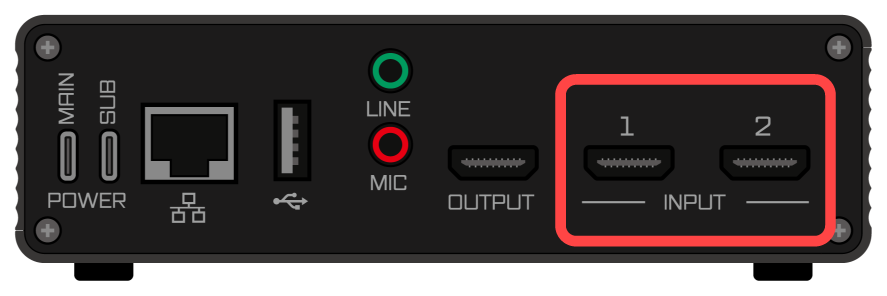
Please turn on the power to your video device after completing the HDMI cable connection. If you connect the video device while it is already turned on, the video may not be recognized correctly by this product.
Inputting analog audio
If you want to input audio other than via HDMI, use the LINE or MIC input or USB Audio. These three inputs can be used simultaneously.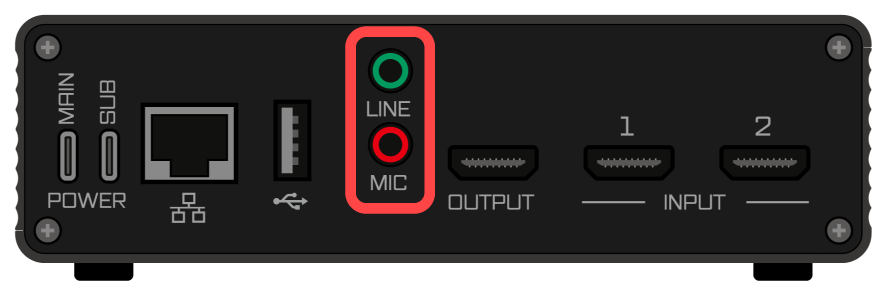
Using LINE input
Use an audio cable (sold separately) to connect the audio output jack on your camera or computer to the LINE IN jack on the back of this product.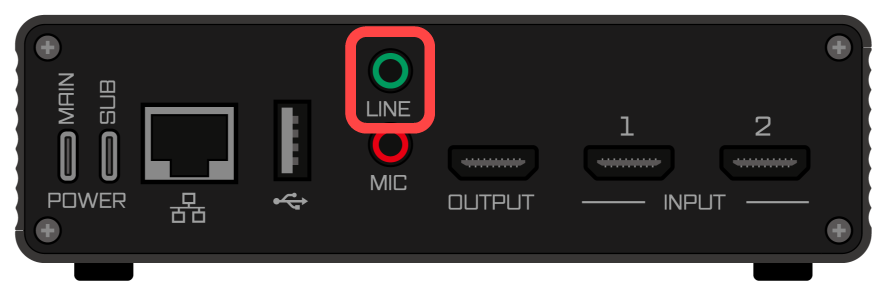
Using MIC input
Use an audio cable (sold separately) to connect a microphone to the MIC IN jack on the back of this product.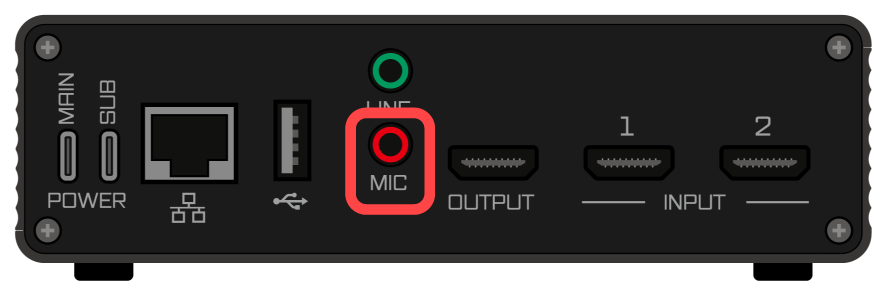
Using the USB input
This product can be connected to a USB audio interface.
The following USB audio interfaces can be used. Please note that compatibility with all devices is not guaranteed.
The sample format must be set to 48kHz 16bit.
There must be one (1) input source.
It may not work properly if a device with multiple input sources is connected.
Use an USB cable (sold separately) to connect the audio interface to USB Port on the back of this product. 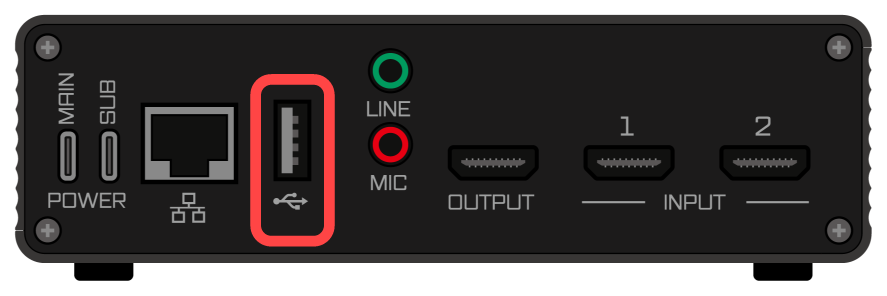
3-2 Preparing for Network Connection
To use this product, you must connect to a network.
Perform the following preparations for connection, depending on the network connection method you will be using.
Connecting via Wired LAN
Use a LAN cable (sold separately) to connect a network device such as a router or switching hub to the wired LAN port on the rear side of the product.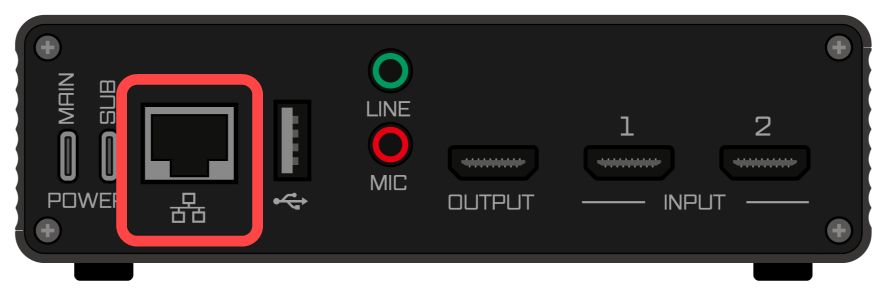
Connecting via Wireless LAN
Connect the wireless LAN adapter to the USB adapter port on the rear side of the product.
Connecting via Wired and Wireless LAN
This product can stream via wired LAN and be configured and controlled from an operating device connected via wireless LAN.
In that case, please prepare for connection according to the respective sections Connecting via Wired LAN and Connecting via Wireless LAN.
3-3 Power Input
Use a USB Type-C cable to connect a power source, such as an AC adapter or power bank, to the USB Type-C ports (MAIN and SUB) on the rear side of the product.
If connecting only one power source, connect it to the MAIN port.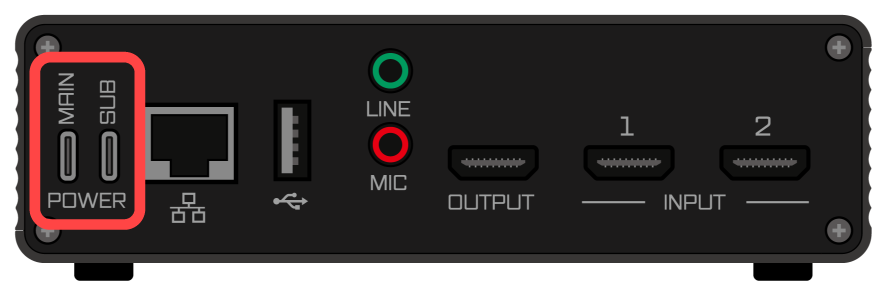
Tip
If you are using an AC adapter or mobile battery other than those specified by our company, please refer to the following.
→Power Supply Specification
Tip
If you use both MAIN and SUB, see below.
→Power Supply Redundancy